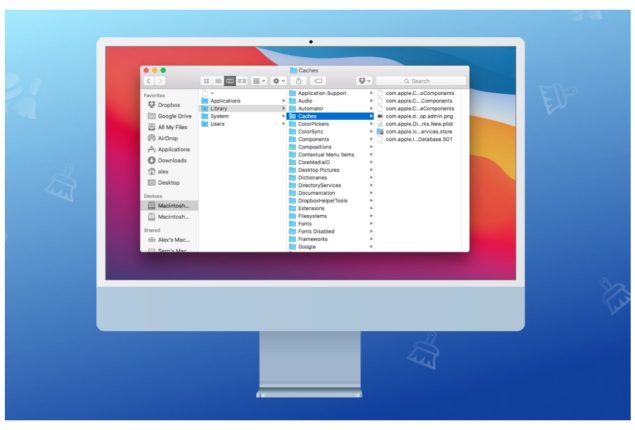
How to Clear the Cache: A Guide to Optimize Device Performance
Advertisement
Regularly clearing the cache enhances device performance and addresses browsing or app-related issues.
Clearing cache improves device speed, frees up storage space, and ensures access to updated content.
A simple guide to clearing cache on web browsers and mobile devices maintains smooth performance.
Advertisement
Regularly clearing the cache can enhance device performance and address specific problems related to browsing or using apps.
Regularly clearing the cache can greatly improve device performance and solve various issues related to browsing or using apps. It’s a straightforward but powerful maintenance activity that can optimize your digital experience.
Clearing cache can free up storage space, improve device speed, fix webpage errors, and ensure you’re accessing the latest content on websites and apps.
Here’s a straightforward guide to clearing cache on various web browsers and mobile devices to maintain smooth device performance.
Clearing cache on web browsers
Google Chrome:
Advertisement
Open Chrome and click on the three-dot menu icon in the top right corner.
Select “More tools” > “Clear browsing data.”
Choose the time range (e.g., Last hour, Last 24 hours, All time).
Check the box next to “Cached images and files.”
Click “Clear data.”
Advertisement
Mozilla Firefox:
Open Firefox and click on the menu button (three horizontal lines) in the top right corner.
Select “Options” > “Privacy & Security.”
Scroll down to the “Cookies and Site Data” section.
Advertisement
Click on “Clear Data.”
Check the box next to “Cached Web Content.”
Click “Clear.”
Microsoft Edge:
Advertisement
Open Edge and click on the three-dot menu icon in the top right corner.
Select “Settings” > “Privacy, search, and services.”
Under “Clear browsing data,” click on “Choose what to clear.”
Check the box next to “Cached images and files.”
Click “Clear now.”
Clearing cache on mobile phones (Android/iOS)
Advertisement
Android:
Open the Settings app.
Scroll down and tap on “Apps” or “Apps & notifications.”
Find and select the app you want to clear the cache for.
Advertisement
Tap on “Storage.”
Tap “Clear cache.”
Also Read
Meta Integrates the AI Model in WhatsApp: Can You Turn It Off?
Meta has integrated its AI chatbot Llama 3 model into WhatsApp in...
iOS (iPhone/iPad):
Advertisement
Open the Settings app.
Scroll down and tap on “General.”
Tap on “iPhone Storage” or “iPad Storage.”
Select the app you want to clear the cache for.
Tap “Offload App” (to free up space) or “Delete App” (to remove the app and its data, including cache).